Short answerInvite by email and pick a role: Administrator, Recruiter, Hiring manager, Interviewer, Analyst or Internal mobility coordinator. The owner is the person who registered.
Steps
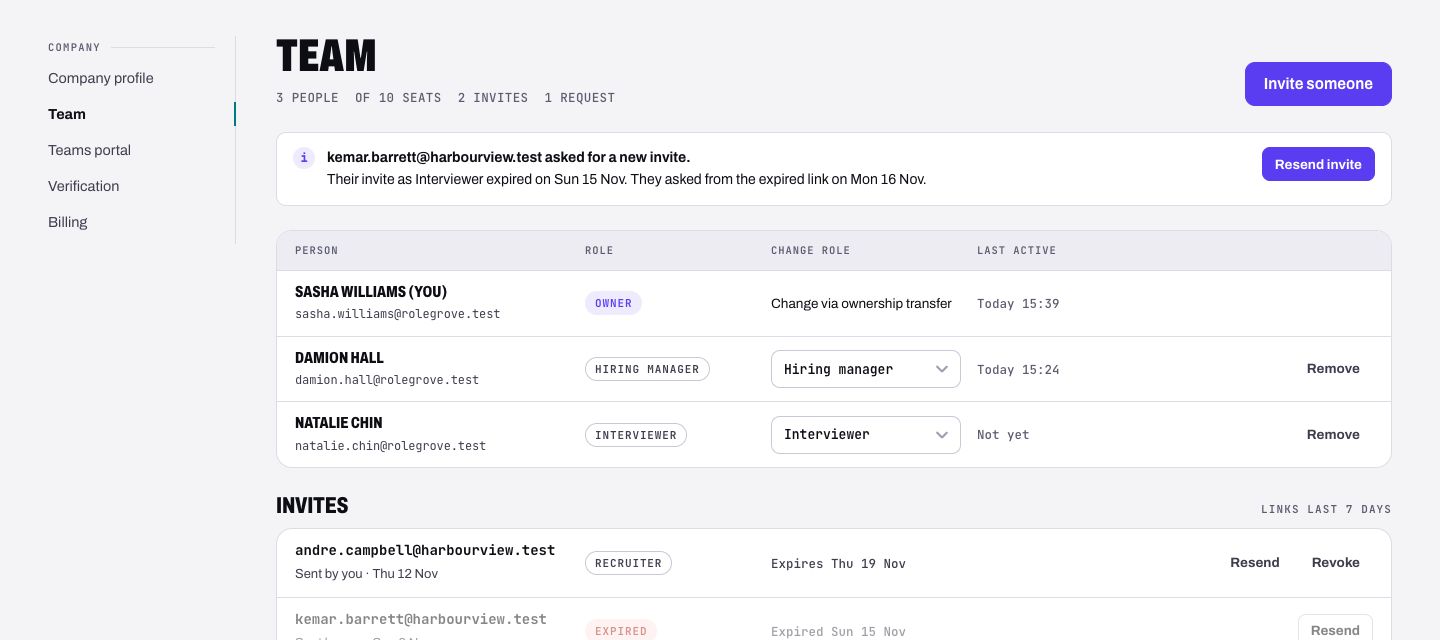
- In Hire, open Company → Team and press Invite someone.
- Enter their email and pick a role.
- They get an email with a link to join. Until they accept, they show under Invites.
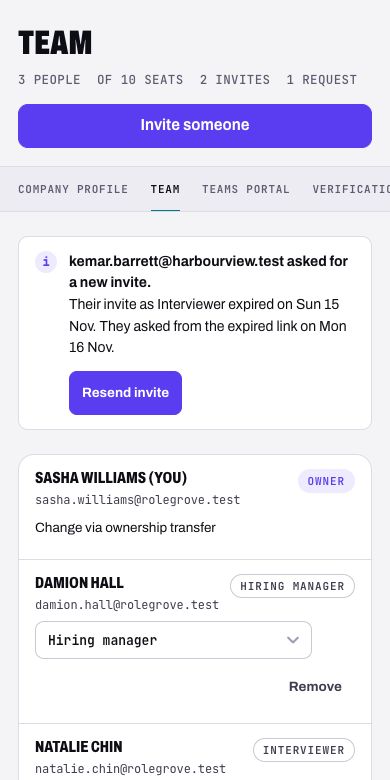
- Change a role from the Change role menu on their row. Press Remove to take someone off the team.
What each role can do
- Owner
- Everything, including the plan, billing and who else is an owner.
- Administrator
- Everything except billing: hiring needs, publishing, team and company settings.
- Recruiter
- Writes hiring needs, publishes, works applicants and searches talent.
- Hiring manager
- Reviews applicants and approves public versions for the needs they're on.
- Interviewer
- Sees only their interviews and fills in scorecards.
- Analyst
- Sees analytics and exports. Never individual applicants.
- Internal mobility coordinator
- Runs internal roles and the Teams portal.
Good to know
- An invite that lapsed? The person can ask for a new one from the link. You'll see it on this page: press Resend invite.
- Use Resend or Revoke on any open invite.
- The owner's role changes through an ownership transfer: see Transfer ownership or close the account.
Did this help?
Tell us, so we can fix what doesn’t.