Short answerPick public, your own staff on Teams, or both, then publish. A public job goes live once your company is verified.
Steps
- Open the hiring need and press Continue until Who sees it.
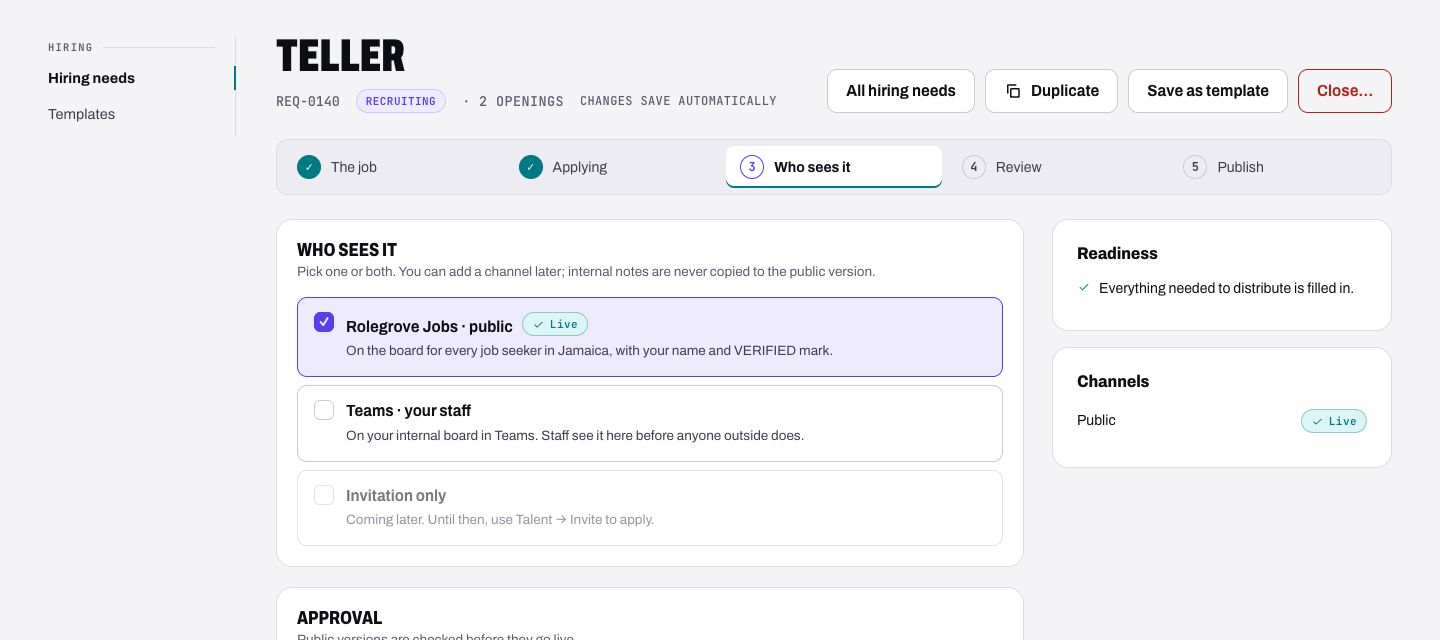
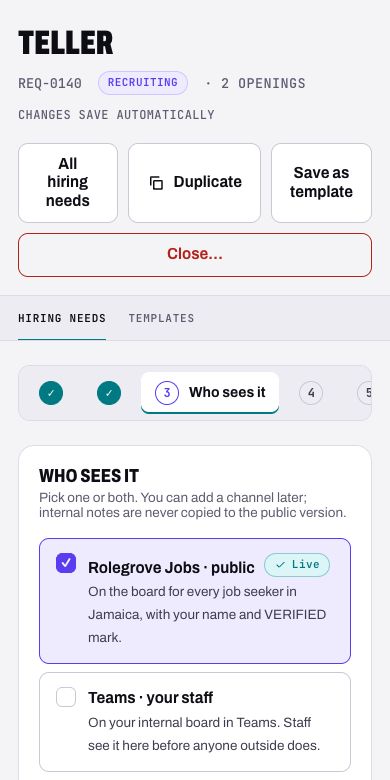
- Pick one or both: Rolegrove Jobs · public (every job seeker, with your name and VERIFIED mark) and Teams · your staff (your internal board, before anyone outside).
- Press Continue to Review. Check what job seekers will see and what happens when you publish.
- On Publish, press Publish to the public or Publish internally. To schedule it, use Release later (optional).
Good to know
- Invitation only isn't a channel you can tick yet. To reach someone directly, use Find talent and invite to apply.
- Going public from internal copies only the shared fields: title, requirements, pay and location. Internal notes stay internal.
- Your company can require a second person to approve public releases. It's a setting under Company.
- A new job shows NEW TODAY on the board.
Did this help?
Tell us, so we can fix what doesn’t.