Short answerOpen the job, press Close hiring need, pick Filled or Cancelled. Everyone still waiting gets one message from you. It can't be undone.
Steps
- In Hire, go to Hiring → Hiring needs and open the job.
- Press Close hiring need. Want to stop applications for a while instead? Press Pause intake instead: nobody is told anything.
- Pick Filled (you hired someone) or Cancelled (you're not hiring for it any more).
- If filled, pick who you hired, or Someone who didn't apply on Rolegrove.
- Check Who gets told, then press Close as filled or Close hiring need.
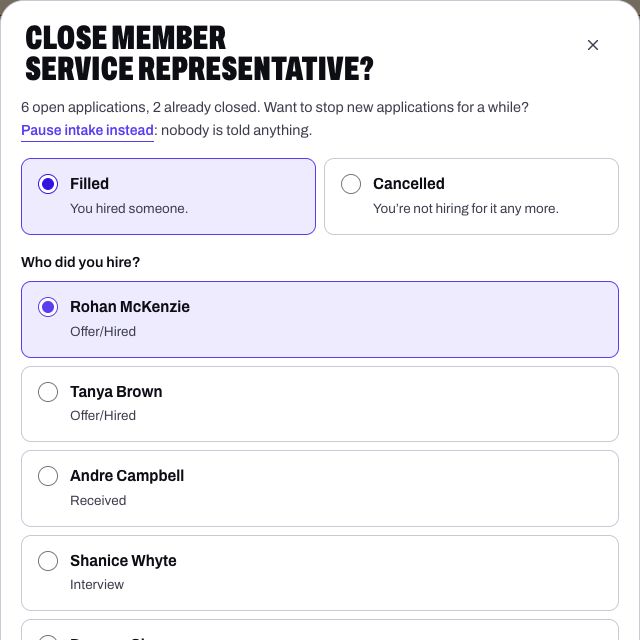
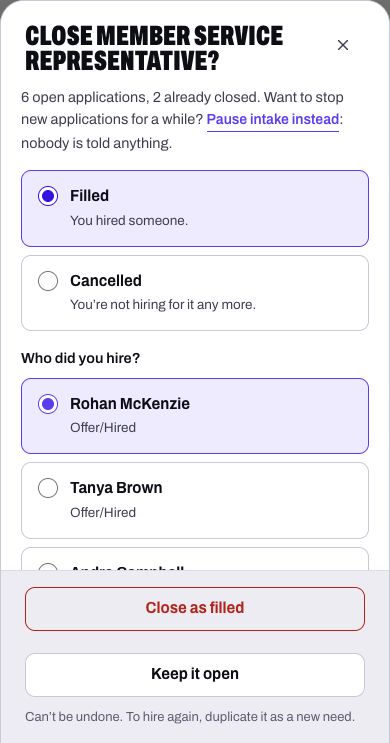
Who gets told
- Open applicants
- See Job filled or Job closed on their application, with one short message from you. Cancelled jobs always read Job closed.
- Interviews
- Booked interviews are cancelled and open offers are withdrawn. The candidate gets a notice.
- People who saved it
- See FILLED or CLOSED on the job. No message.
- Your hire
- Gets no closing message and shows as Hired.
Good to know
- You can't reopen a closed job. To hire again, duplicate it as a new hiring need.
- Jobs you don't confirm come off the board for you at day 10.
- Only people who can edit the job see Close hiring need. Hiring managers and interviewers don't.
- Closing your whole company account ends every live job the same way.
Did this help?
Tell us, so we can fix what doesn’t.