Short answerOpen the invite link HR sent you, or go to the claim-code page and type the code they gave you. If a link or code has expired, ask HR for a new one.
With an invite link
- Open the link in the email from your company's HR team. It names your company.
- Signed in with a work account on the invited email? Press Join as your email.
- Otherwise, pick Create a work account or Sign in, then follow the steps. If you're on a different address, we send a code to the invited inbox first.
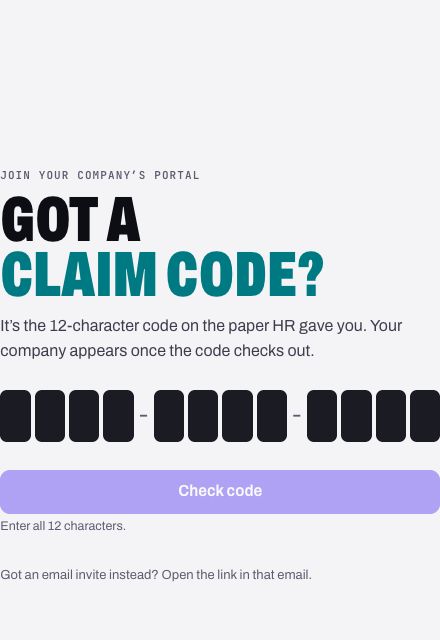
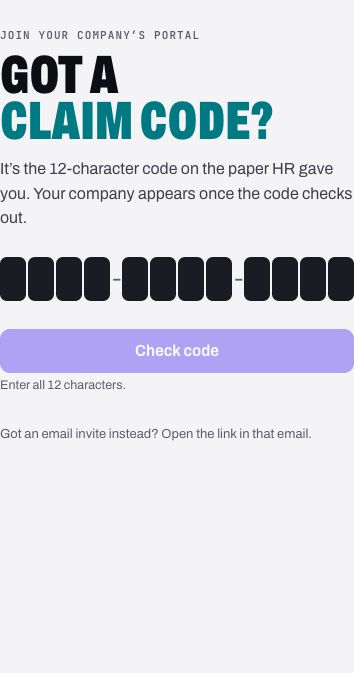
With a claim code
- Go to Enter a claim code and type the code from the paper HR gave you.
- Press Check code. Check the name shown is yours. Wrong person? Don't continue: tell HR.
- Press Join as your email, or create a work account.
Good to know
- Teams uses a work account. A job-seeker account is never touched or linked.
- A claim code works once. If it's used, sign in. If it's expired or it doesn't work, ask HR for a new one.
- After joining, you sign in at your company's own Teams page. Your company name is in the web address HR gave you.
- Still stuck? Contact us and we reply within 2 working days.
Did this help?
Tell us, so we can fix what doesn’t.